
Find furniture
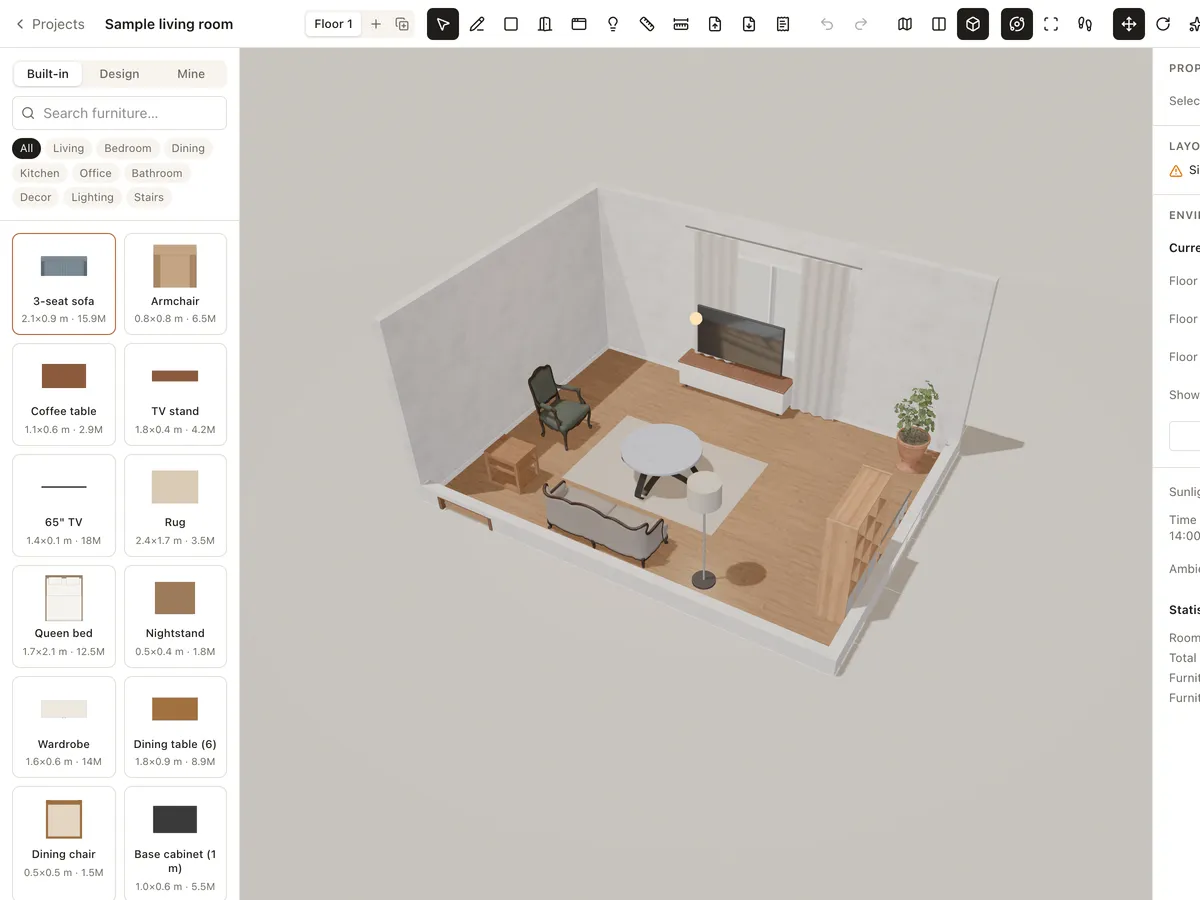
Built-in is the official library; Design holds parametric furniture templates; Mine holds models you've imported or saved.
Filter by category (Living, Bedroom, Dining, Kitchen, Office, Bathroom, Decor, Lighting, Stairs) or type a name in the search box. Each tile shows the size and a reference price.
Place, move and rotate
- 1Click a tile to add the piece to the room, or drag the tile onto the plan or the 3D view.
- 2Drag the piece to move it; it snaps against walls as it gets close.
- 3In 3D, pick Move (G) or Rotate (T) and use the handles.
- 4Ctrl + D duplicates and Delete removes the selected piece.
- 5Select several pieces with Shift + click or Shift + drag on empty plan, then use Align, Arrange (distribute, mirror, rotate 90°) and Group in the Properties panel. While you drag, pink guides show when a piece lines up with another, with its distance to the nearest wall.
Size, materials and price
A piece's Properties let you change width, depth, height, rotation, elevation above the floor, material, colour (with an Original colour reset) and the unit price used in the quote.
Statistics in the Environment panel add up the furniture count and the floor's furniture estimate.
Import your own 3D models
- 1Open Furniture library from the left menu of the projects page and click Import model.
- 2Drop a .glb file, or choose a whole GLTF folder with its .bin and textures (up to 200 MB; Roomcraft optimises it to under 50 MB).
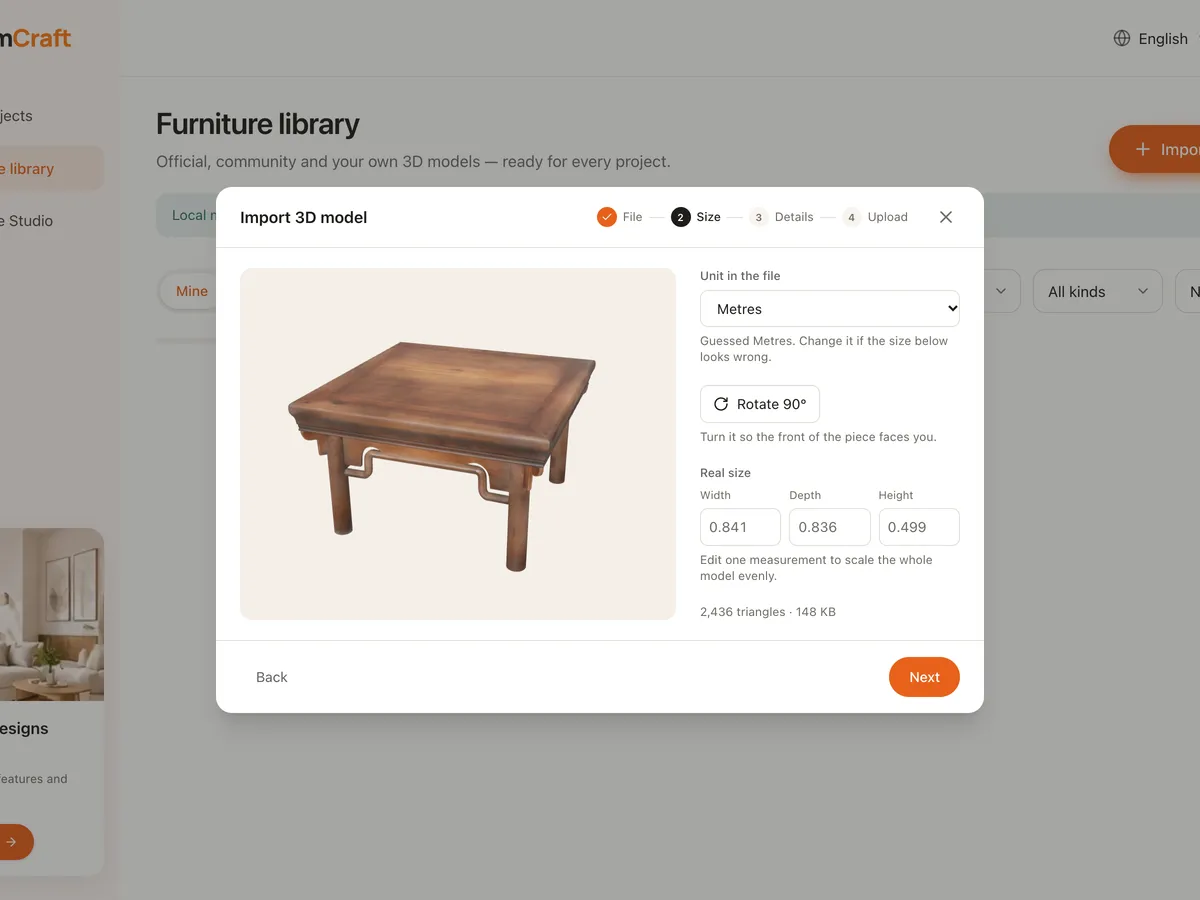
- 3Check the unit in the file, Rotate 90° so the front faces you, and enter the real size.
- 4Fill in the name, category, keywords, placement (floor, wall, ceiling) and who can use it, then Add to library. The model appears in the Mine tab in the editor.
Public models are reviewed by Roomcraft before they show in the Community library. Each account has 500 MB of library storage.