
Use parametric templates
- 1Open the Design tab in the library on the left.
- 2Click or drag a template (wardrobe, cabinet, bookshelf, bed, table, chair, sofa) into the room.
- 3In Properties, adjust the Size, Structure, Style, Details and Materials groups. The summary line shows the overall size and estimated price.
- 4Click Reset to defaults to go back to the original settings.
Cut list and exports
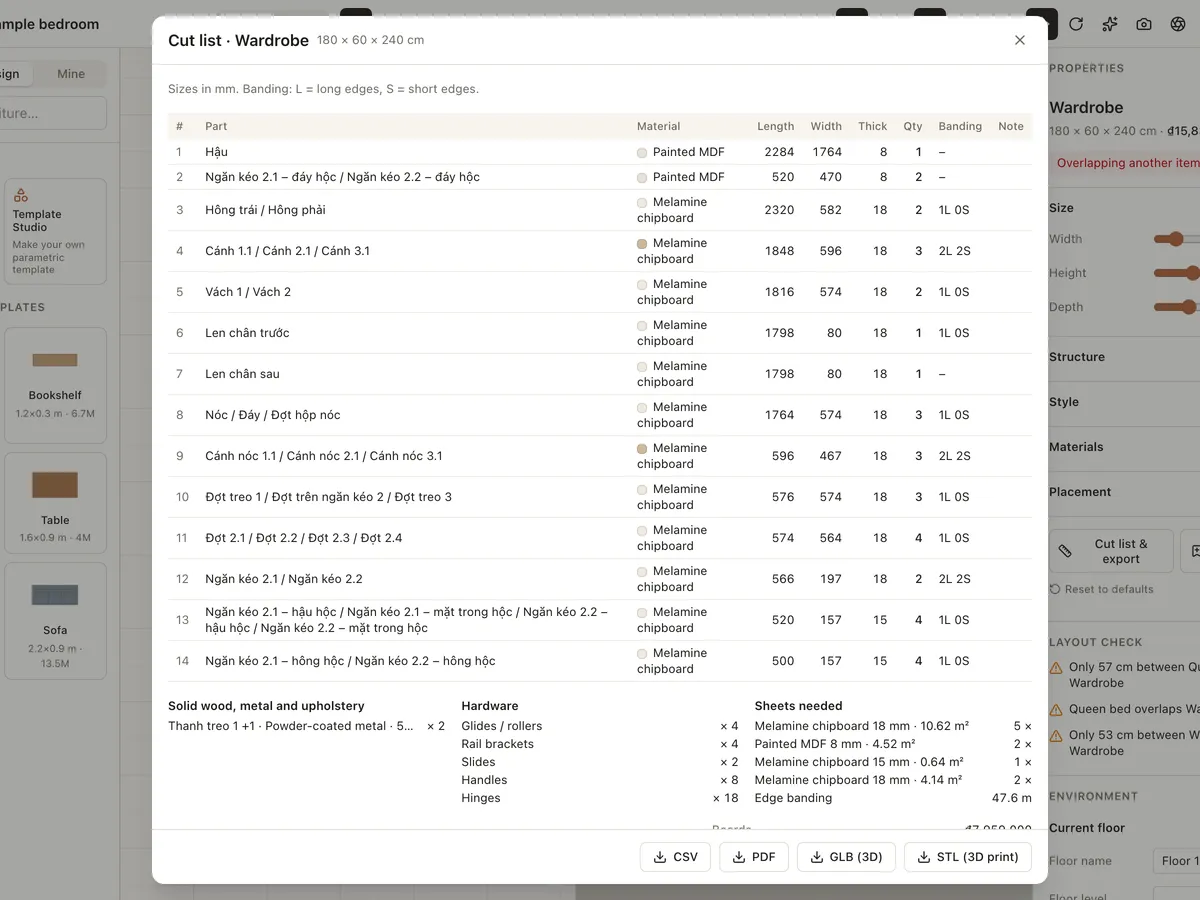
Click Cut list & export to see every part in mm with its material, thickness, quantity and edge banding, plus hardware, sheets needed and an estimated price.
Export CSV or PDF for the workshop, GLB for other 3D software, or STL for 3D printing. Click Save to library to reuse the piece in other projects.
Freeform pieces
Click New freeform piece in the Design tab to model a piece from boxes, cylinders and sketches, with push/pull, fillets and chamfers. Click a body, face or edge to pick it, drag the arrows to move it, then click Done.
Make your own templates in Template Studio
- 1Open Template Studio from the left menu of the projects page (sign-in required). Start from a Blank template or Open the example.
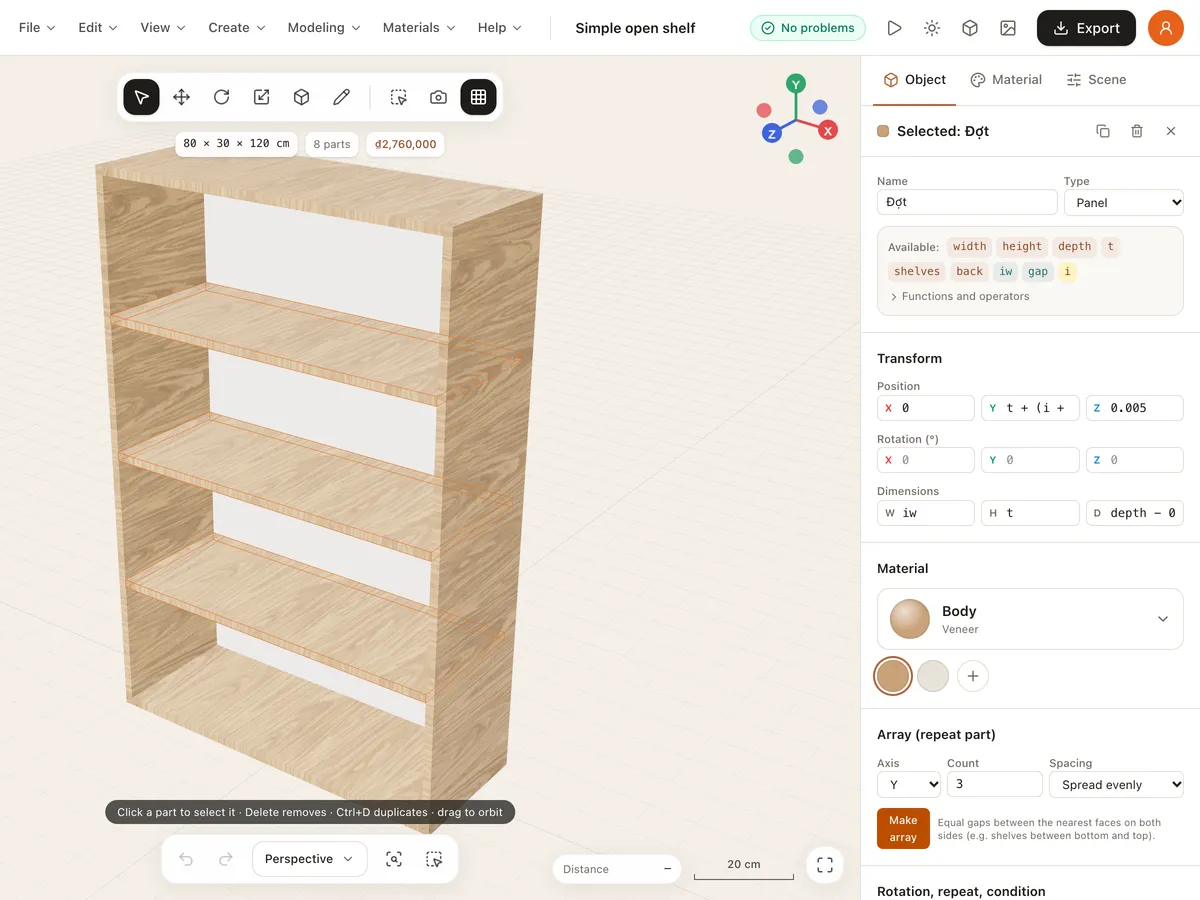
- 2Declare Parameters (number, integer, choice, switch) with defaults, min, max, units, groups and visibility conditions.
- 3Add Variables for repeated maths, e.g. iw = width - 2*t, and Materials for each group of parts.
- 4Add Parts (panel, block, cylinder, handle, knob) whose size, position and rotation are expressions; repeat them or add conditions as needed. You can also build directly with the 3D tools: move, push/pull, draw panels, measure, rotate, scale, paint and arrays.
- 5Try parameter values in the preview. When the status reads No problems, choose Save to library; the template appears in the editor's Design tab.
Import and export templates as JSON to back them up or send them to colleagues. Your draft is saved automatically in the browser.